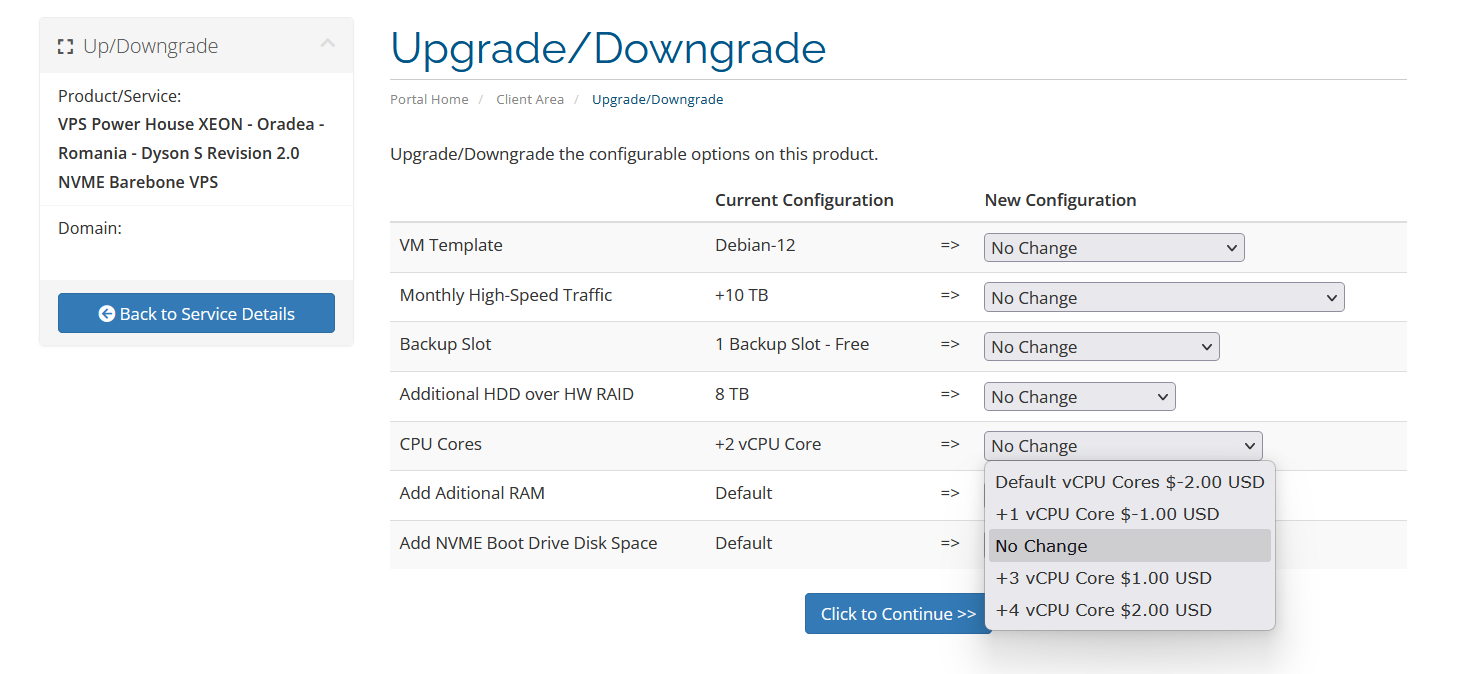
VPS services can be directly upgraded or downgraded from your client panel.
To use it:
-
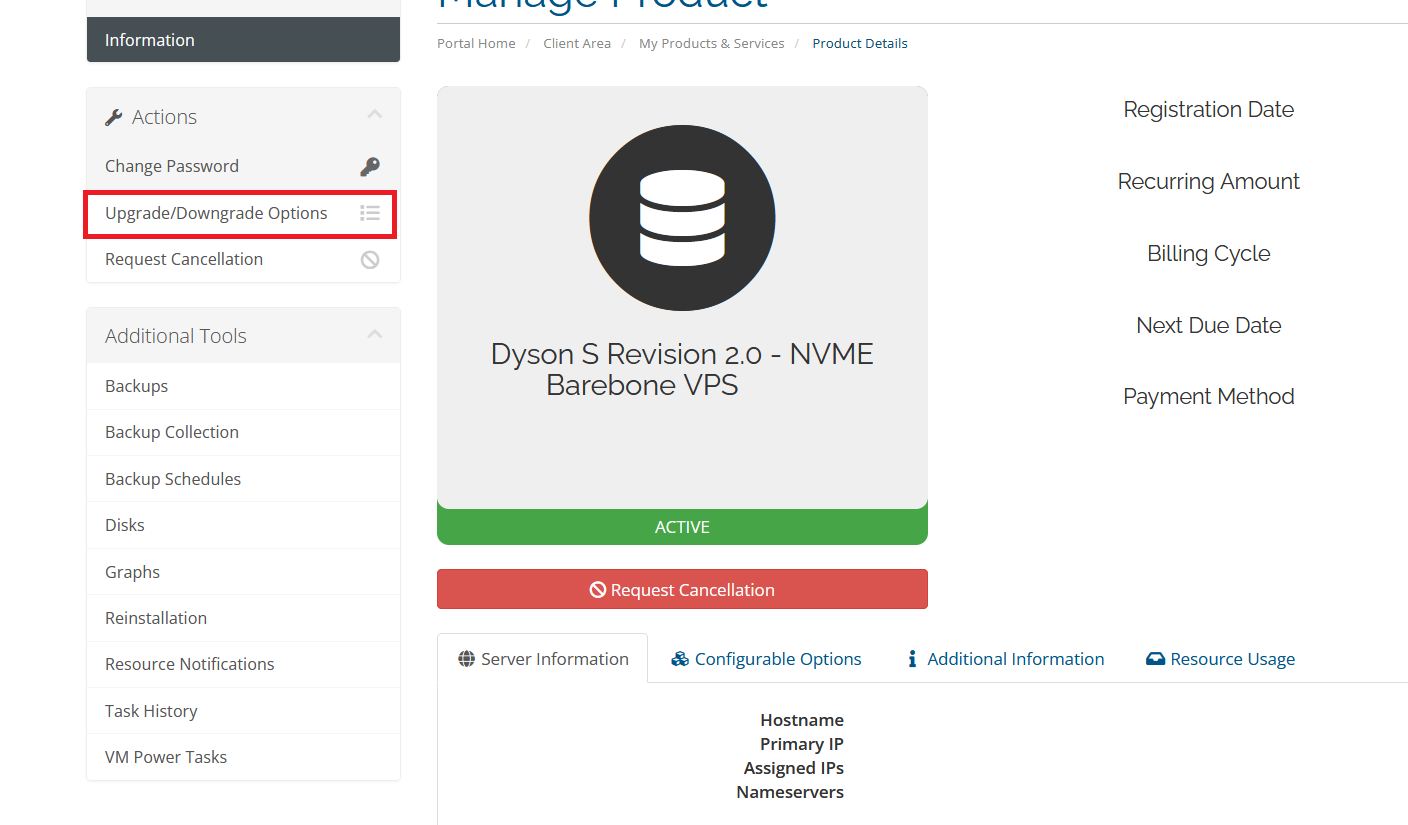
Select the desired service in your panel.
-
Click on "Upgrade/Downgrade Options".
-
Choose the desired specifications and proceed to checkout.
The upgrade cost is calculated based on your current billing term, and you will only be charged for the remaining days until your next renewal.
Please note:
-
Available upgrade options may vary depending on your VPS model. Not all specifications are available for all services.
-
Downgrades can only be applied down to the original base specifications of your VPS plan (you cannot reduce specs below what was initially purchased).
- Downgrading storage (disk size) will require re-provisioning the VPS from scratch, and all existing data will be permanently deleted. Please back up your data before proceeding with any storage downgrade.
If you experience any issues, please open a support ticket, and our team will assist you promptly.
Thank you for your continued trust.
Example:
Step 1
Step 2